
2-1-5: Easy and Hard Selection
Chapter 2: Basic Editing
|
2-1: Selection 2-1-5: Easy and Hard Selection |
|
In a busy circuit, many objects may overlap, causing confusion when selecting. To simplify selection, objects can be marked so that they are no longer easy-to-select, which means that standard selection does not work on them.
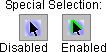 | To select hard-to-select objects, use the Toggle Special Select command (in menu Edit / Modes / Select). You can also click on the "Special Select" tool bar button to enable "special selection". Once in this mode, all objects are selectable. |
Ease of selection extends to more than just nodes and arcs. There are four "classes" of objects that can be selected:
By default, the first three classes are easy-to-select, and instance names are hard-to-select. If you uncheck "Easy selection of cell instances" in the Selection Preferences dialog, then cell instances become hard-to-select.
Although all nodes and arcs are typically easy-to-select, you can control them individually by unchecking the "Easy to Select" field in their properties dialog (use the Object Properties... command in menu Edit / Properties). If multiple objects are selected, the Object Properties... dialog has a popup on the right for changing their selection difficulty.
Special commands exist in the Selection menu for dealing with easy-to-select nodes and arcs. You can select all of the easy-to-select objects in the current cell with the Select All Easy command. Similarly, you can select those that are not easy-to-select with the Select All Hard command. To change the ease of selection for a set of objects, highlight them and use either Make Selected Easy or Make Selected Hard.
 |
Previous |  |
Table of Contents | Next |  |